The item editor has been deprecated in beorg 2026.9, and it’s use replaced by the outliner. The item editor will be removed in a future version of beorg.
Item details
The item editor allows you to modify most details of a headline.
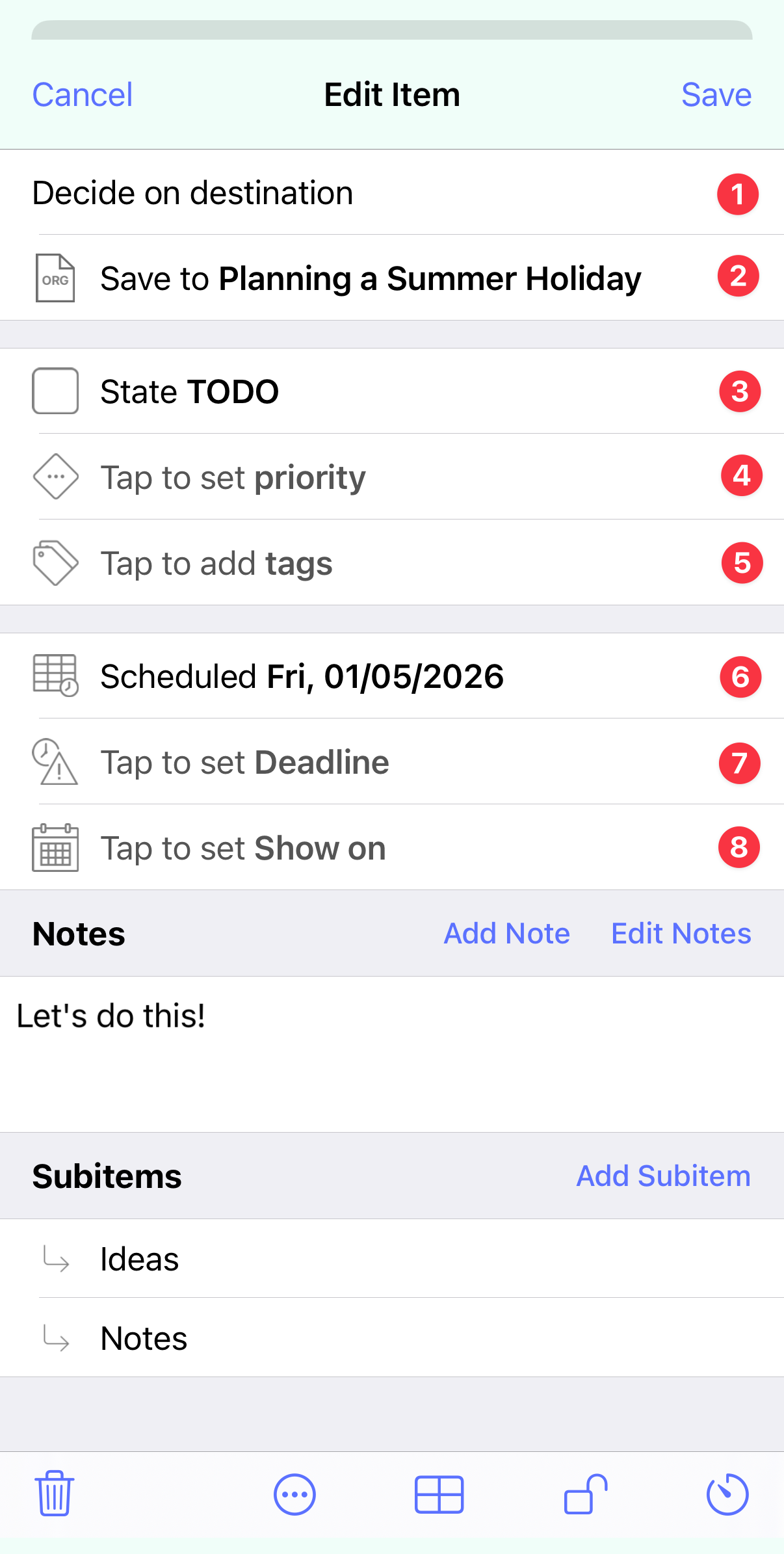
Top section:
- The headline text itself.
- The file the headline is saved to. Tap to move to a different file. If you change this, then the headline will be appended to the end of the selected file.
Key details:
- The todo keyword - for example TODO or DONE. Long-press or tap to select a different keyword. This can be empty if the headline isn’t a task.
- A priority. This is a single letter, by default from A to F. A represents the highest priority, and F the lowest. For the purposes of sorting no priority is treated as a B.
- Tags - for example Shopping or Project. Tap to select or create a tag to assign to this headline.
Dates:
- The scheduled date for this headline. This date is when you would plan for this headline to be worked on or started.
- The deadline date - when this headline should be finished by.
- The active, or ‘show on’, date - when you’d like this item to appear in the agenda, but without any implication that there is necessarily anything to do on that date.
Notes
The headline notes can be used for many different purposes. For example:
- To provide explanatory text or context about what a headline represents.
- Task requirements.
- Research findings.
- Status updates.
- Thinking to capture thoughts, ideas or reasoning.
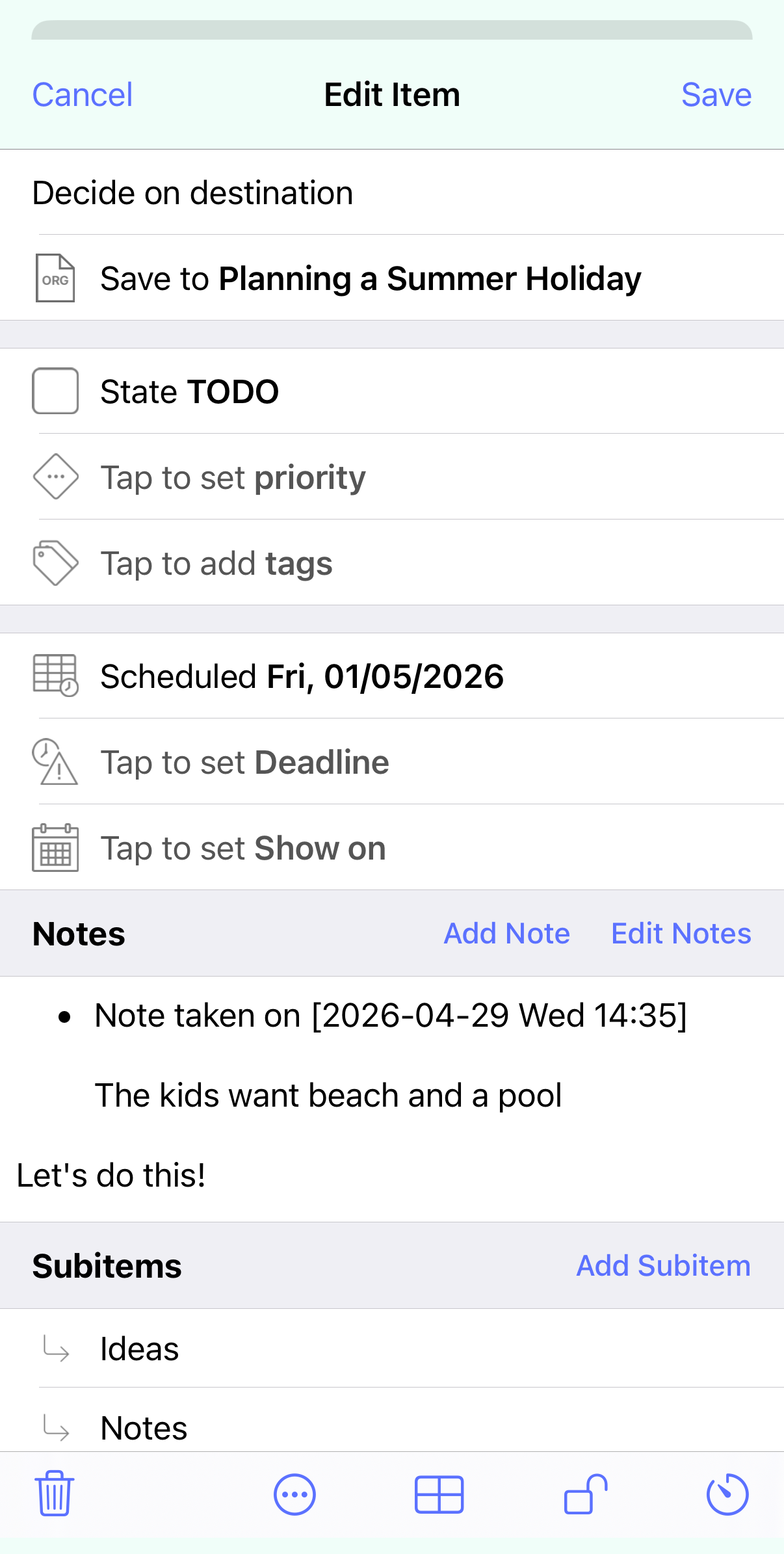
The notes are shown in the item editor by rendering the Org mode formatting, so may include bold, italics or links to web pages.
Tapping Edit Notes will open up the notes text editor.
Add Note also brings up the text editor, however will add to a list of dated notes.
Subitems
In beorg headlines can have sub-headlines, and sub-sub-headlines, etc. This support for a hierarchy of headlines allows you to structure a file to meet your needs.
Tap Add subitem to add a new child headline. Tap an existing subitem to bring up the item editor for the selected headline.
The toolbar
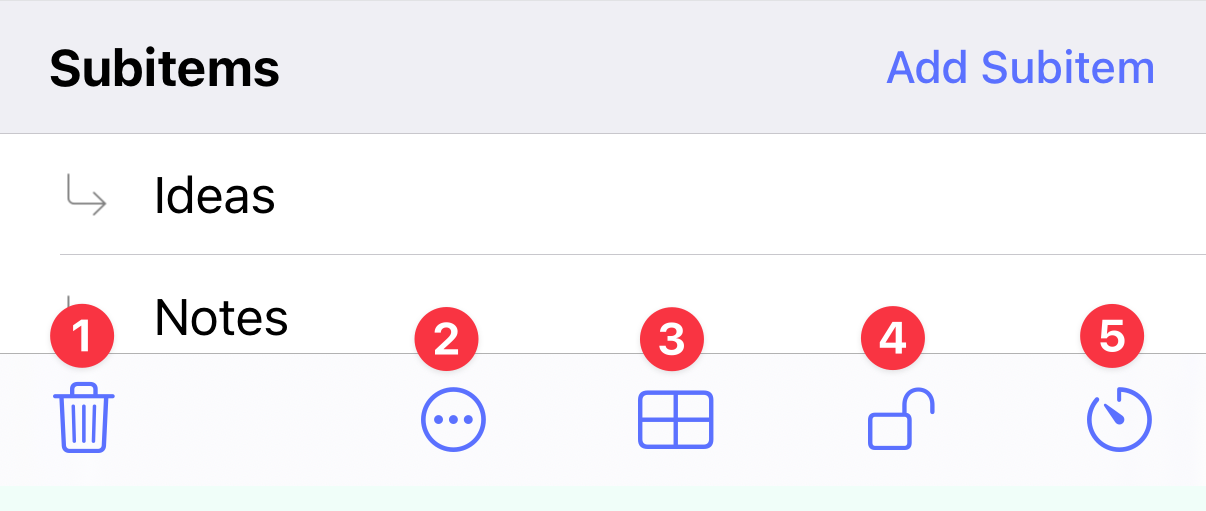
The toolbar at the bottom of the screen provides the following actions:
- Delete this headline.
- By default this has the following actions, however it is controlled by the Scheme variable
item-editor-menuif you want to customize it:
- Remove all dates (remove the scheduled, deadline and show on dates).
- Schedule for tomorrow.
- Make top priority today (i.e. set the priority to A).
- Assign current location (this adds a property, see below, containing your current GPS location).
- Edit the properties drawer (see below).
- Control the encryption of the contents and children for this headline (see below).
- Start a timer on this headline, or view a clocked time report.
The properties drawer
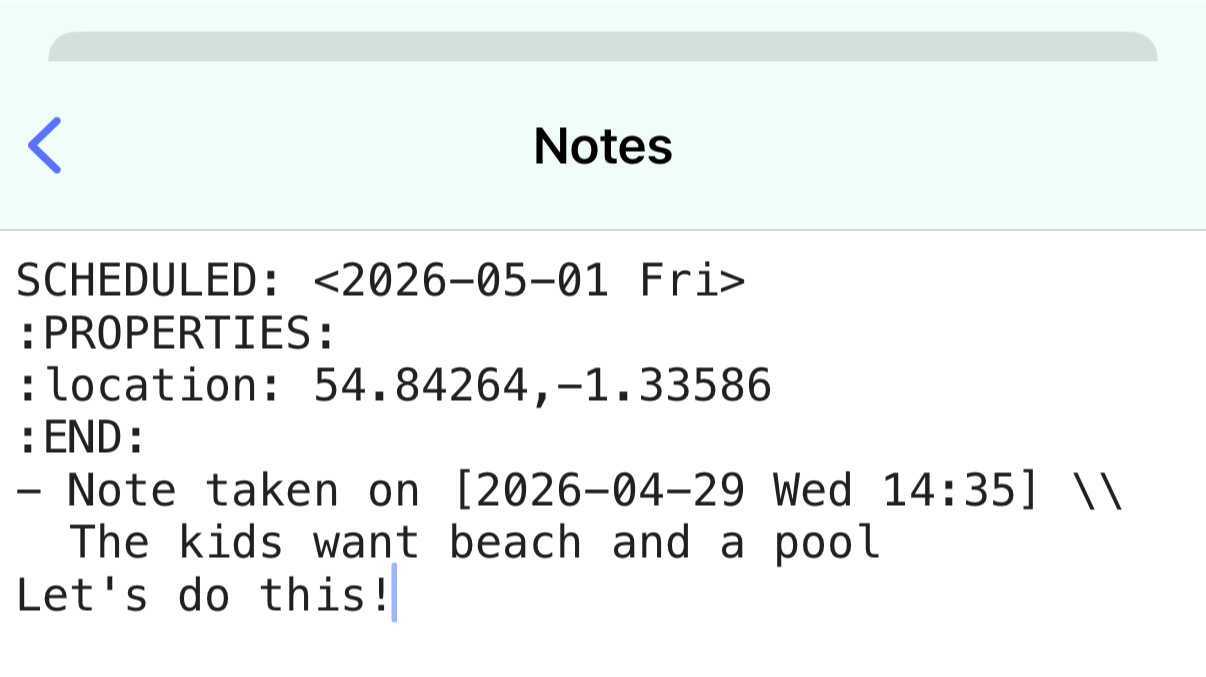
This is a place for key/value pairs to store arbitrary data about a headline. For example you could use it to store the author for a book.
The key location can be used to keep a longitude and latitude representing a location attached to the headline.
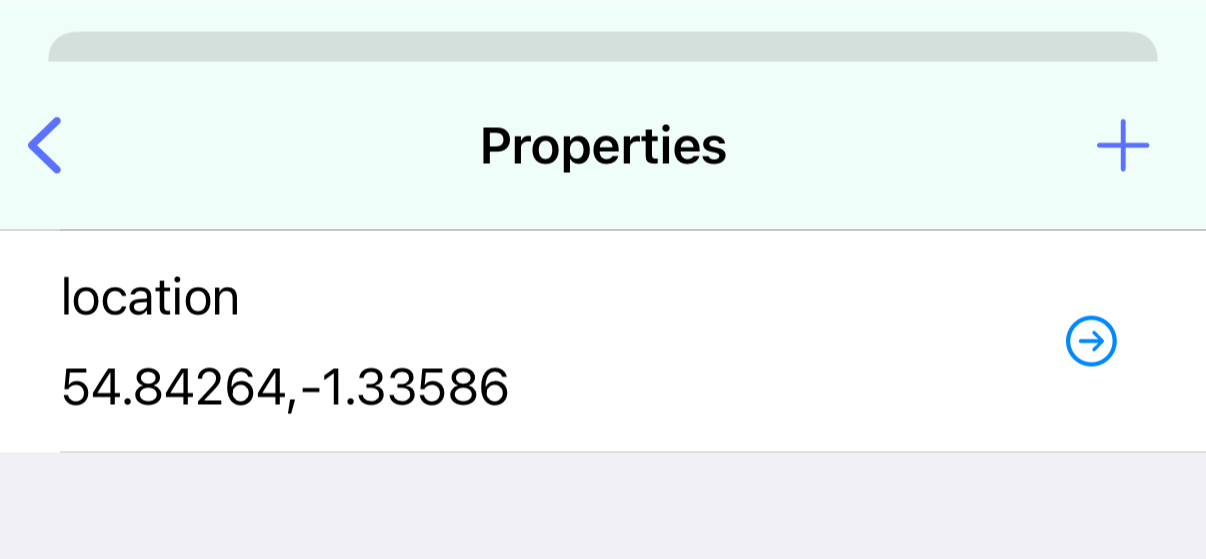
If you’ve added some properties you can also see/edit the properties by editing the headline notes.
✨ This is available as part of a beorg Premium subscription, and as a separate in-app purchase.
Encryption
If you have notes and sub-headlines you want to keep secret then you can use beorg’s encryption.
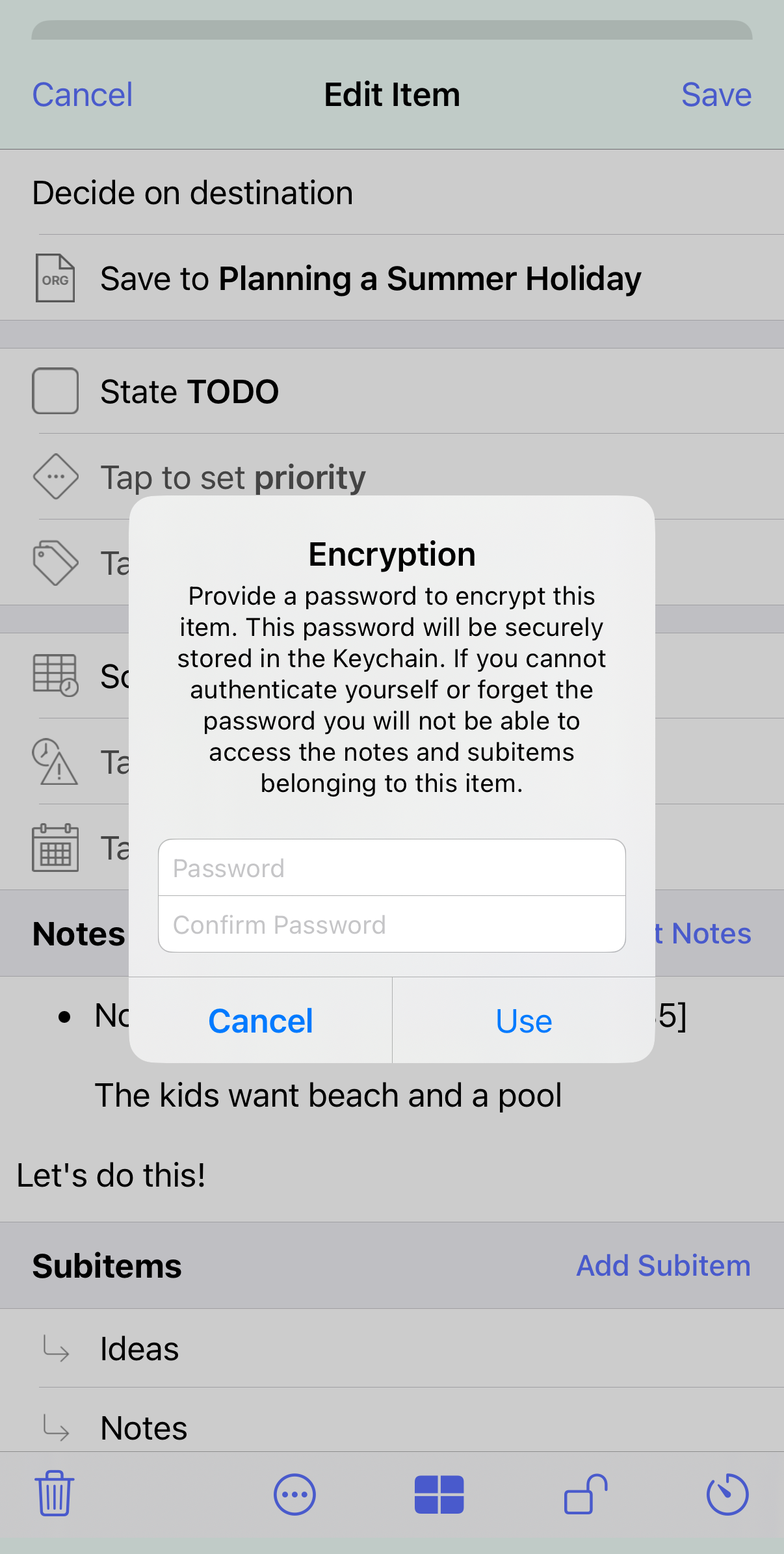
To learn more about see the article Encryption in beorg.
✨ This is available as part of a beorg Premium subscription, and as a separate in-app purchase.
Timers
You can start a timer on a headline to track how much time you spend on a task. You can only have a single timer running at once.
Each time you start the timer a new CLOCK line will be added to a LOGBOOK drawer. You can see this by editing the item notes.
The View Report option will sum all of the time spent on this headline and on any child headlines. You’ll then be able to see how much time has been spent daily, weekly, monthly and a grand total.
✨ This is available as part of a beorg Premium subscription, and as a separate in-app purchase.